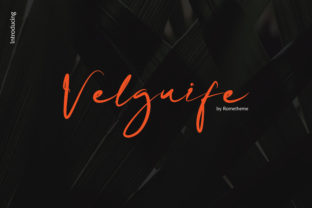
Lollipop: A Chic Upscale Script Font for Purpose-Driven Design
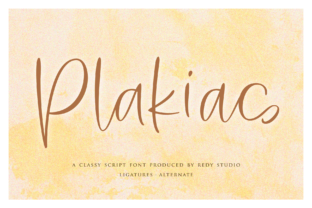
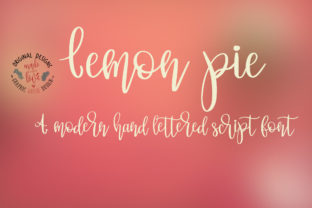
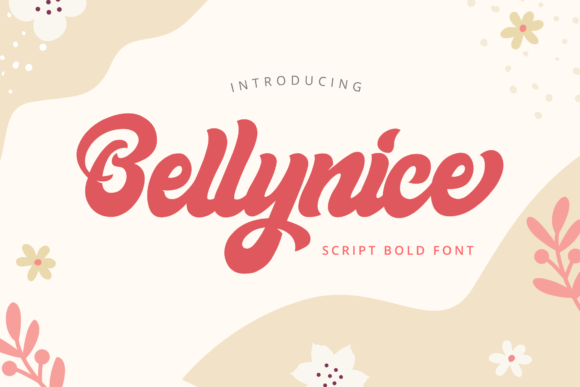
Lollipop isn’t just another script font—it’s a deliberate design choice that signals intention, elegance, and attention to detail. Designed as a chic upscale script font, every glyph in Lollipop has been hand-crafted with precision: letterforms balance fluidity and structure, spacing is optically tuned, and the romantic touch emerges not from ornamentation alone, but from thoughtful rhythm and subtle contrast. For professionals and creators who treat typography as part of their workflow—not just decoration—Lollipop fits naturally into stages where tone, clarity, and visual cohesion matter most.
Where Lollipop Fits in Your Creative or Business Workflow
Typography rarely stands alone. It supports decisions, reinforces brand voice, and guides how audiences interpret information. Lollipop enters the process early—not as an afterthought, but as a strategic asset. Before finalizing a wedding invitation suite, a boutique brand’s social campaign, or a personal blog’s featured quote section, designers and content creators often ask: What feeling should this evoke before a single word is read? That’s where Lollipop becomes functional. Its romantic yet refined character makes it ideal for moments requiring warmth without informality, sophistication without stiffness.
It works especially well when paired with clean, neutral sans-serifs (like Inter, Poppins, or Montserrat) for body text or captions. This contrast creates hierarchy without competition—Lollipop draws the eye to key messages, while supporting fonts ensure readability and accessibility. In practice, that means using Lollipop for headlines, pull quotes, logo lockups, or short hero text—and reserving more utilitarian fonts for longer-form content, navigation labels, or data-heavy layouts.
Practical Implementation Across Real Projects
How you use Lollipop depends on your medium, tools, and goals—but consistency and context are non-negotiable. Here’s how it integrates across common scenarios:
- Invitations & Print Collateral: Whether designing digital save-the-dates or letterpress wedding suites, Lollipop performs reliably at sizes 24pt and above. Its open counters and generous x-height maintain legibility even when printed on textured paper. Always test print proofs—especially with metallic inks or foil stamping—since fine hairlines may require slight stroke adjustment in prepress.
- Digital Content & Social Media: On platforms like Instagram or Pinterest, Lollipop shines in static graphics and Stories overlays. Use it sparingly—never for full paragraphs—and pair it with high-contrast backgrounds. Export as PNG with transparent backgrounds for flexibility. Avoid embedding Lollipop directly in web pages via @font-face unless you have licensing clearance; instead, render text as vectors or images for controlled output.
- Blog Posts & Editorial Design: For bloggers and publishers, Lollipop elevates featured quotes, section dividers, or author bylines. Apply it selectively: one instance per post is often enough to reinforce voice without overwhelming readers. When used in CSS-driven layouts, convert Lollipop text to SVG for crisp rendering across devices—or use it in design tools (Figma, Adobe Express) before exporting final assets.
- Branding & Small Business Identity: Local studios, wellness practitioners, and artisanal shops find Lollipop aligns well with values like care, authenticity, and craftsmanship. It pairs effectively with minimalist logos and muted color palettes. Just ensure it doesn’t conflict with existing brand guidelines—especially if your primary logo uses a bold geometric typeface. Use Lollipop for secondary applications only (e.g., packaging accents, email headers, workshop certificates), not core identity elements unless intentionally contrasting.
Compatibility, Preparation, and Technical Considerations
Lollipop is available in OpenType format, supporting standard Latin characters, ligatures, and stylistic alternates. Before importing into design software, verify your version includes the full character set—some free variants omit punctuation or accented letters needed for multilingual projects. If you’re working with clients or collaborators, share the font file only when licensed for team use; unauthorized distribution risks legal exposure and inconsistent rendering.
Preparation matters: always embed Lollipop in PDFs intended for print, and outline text before sending files to third-party printers. In Figma or Sketch, use “Export as SVG” rather than relying on live font rendering—this preserves fidelity and avoids fallbacks. For developers integrating Lollipop into internal dashboards or client-facing tools, confirm licensing permits web use and consider performance trade-offs: custom fonts add HTTP requests and can delay perceived load time. When speed is critical, reserve Lollipop for above-the-fold hero elements only.
Quality Control and Long-Term Use
Because Lollipop carries strong tonal weight, inconsistency dilutes its impact. Establish simple rules upfront: define exactly where and how it appears (e.g., “Lollipop is used only for H1 headings on landing pages and quote blocks in blog posts”). Document those rules in a style guide—even a lightweight one—to maintain coherence across team members, contractors, or over time. Revisit usage every 6–12 months: does it still reflect your current voice? Has audience feedback indicated readability concerns at smaller sizes? Has your brand evolved beyond its romantic nuance?
Long-term usability also hinges on licensing clarity. If you purchased Lollipop through a marketplace like Creative Market or MyFonts, review the license terms for commercial redistribution rights—especially important if you’re a designer delivering branded assets to clients or a publisher bundling fonts with templates. Some licenses restrict use in SaaS products or resale items; violating those terms can trigger takedowns or fines.
Workflow Integration Tips You Can Apply Today
You don’t need a full rebrand to begin using Lollipop purposefully. Start small and scale deliberately:
- Identify one recurring communication point where tone matters most—e.g., email newsletter subject lines, Instagram Story highlights, or certificate templates—and apply Lollipop there first.
- Create two reusable templates in your preferred tool (Canva, Figma, or Google Slides): one for quotes, one for invitations. Save them with clear naming (“Lollipop Quote – Light BG”, “Lollipop Invite – Dark BG”) so you or your team can deploy consistently.
- Test legibility across devices. View rendered Lollipop text on mobile, tablet, and desktop. If letters blur or spacing collapses at smaller sizes, adjust tracking manually or switch to a bolder weight if available.
- Pair it with a system font for body copy—not just for contrast, but for performance and accessibility. Tools like Google Fonts offer fast-loading, WCAG-compliant options that complement Lollipop’s personality without competing.
- Track usage frequency and audience response. Note whether engagement metrics (click-through rates, time-on-page for quote-heavy posts, or client feedback on invites) shift meaningfully after introducing Lollipop. Let real-world outcomes—not assumptions—guide expansion.
Ultimately, Lollipop earns its place not because it’s decorative, but because it serves a function: it helps people feel something before they finish reading. That’s valuable in any workflow where connection, credibility, or clarity drives results. Used with intention—not excess—it becomes less of a font and more of a quiet collaborator: shaping perception, reinforcing message, and supporting the work you do every day.