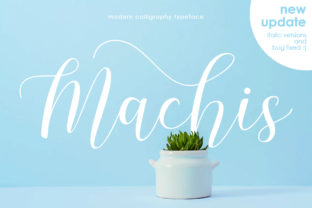
Machis: A Modern Calligraphy Font Built for Real Design Workflows
Machis is a modern calligraphy font designed with intention—not just aesthetics. It’s not a decorative afterthought or a one-off embellishment. It’s a functional typeface built to integrate into actual design processes, from early concepting to final delivery. What sets Machis apart isn’t just its elegance—it’s the deliberate inclusion of three distinct swash styles, each engineered to expand expressive range without requiring multiple font purchases, licensing checks, or compatibility troubleshooting.
Where Machis Fits in Your Creative Process
Most designers encounter calligraphy fonts at the tail end of a project—when they need “something elegant” for a logo lockup or greeting card headline. But Machis works earlier and more flexibly. Because it includes three coordinated swash variants (light, medium, and bold), you can establish visual hierarchy *before* layout begins. For example, when sketching a brand identity system, you might assign the light swash to taglines, the medium to subheadings, and the bold to primary logos—keeping tone consistent while varying emphasis. That kind of planning reduces revision cycles later.
It also supports iterative work. If you’re building a stationary kit—letterhead, business cards, envelopes—you don’t need to switch fonts to adjust weight or flourish intensity. Machis lets you maintain typographic cohesion across formats while adapting to size constraints: the bold swash holds up at 36 pt on a banner; the light swash remains legible and graceful at 14 pt on a thank-you note footer.
Compatibility and Setup: Practical First Steps
Machis is delivered as OpenType (.otf) files, compatible with Adobe Creative Cloud (Illustrator, Photoshop, InDesign), Affinity apps, Figma (via desktop app or plugin), and most modern web design tools. No special installers or activation steps are needed—just drag the files into your system’s font folder or use your design app’s font manager. On macOS, double-click and click “Install Font”; on Windows, right-click and select “Install.”
Because all three swash styles share the same character set and metrics, they align cleanly in paragraph text or stacked headlines. Kerning pairs are pre-built, and ligatures activate automatically in apps that support OpenType features (like Illustrator’s “OpenType” panel or InDesign’s “Contextual Alternates”). You won’t need manual spacing adjustments for common letter combinations like “Th,” “Fl,” or “St”—Machis handles those intelligently.
Using Machis Before the Project Starts
Pre-project use is where Machis adds quiet leverage. When pitching a rebrand to a client, include Machis-based mockups—not as final assets, but as mood indicators. Its swashes communicate refinement and intentionality without relying on stock imagery or vague adjectives like “luxury” or “handcrafted.” Clients respond more confidently to tangible typography than abstract descriptions.
For educators or course creators, Machis helps structure learning materials before content is fully written. Use the medium swash for section headers in a syllabus, the light for pull quotes in handouts, and the bold for certificate titles. That early typographic scaffolding keeps visual consistency top-of-mind during content development—not as an after-the-fact polish step.
During Execution: Workflow Integration Examples
Logo design: Start with the bold swash for the primary wordmark. Then test variations using only the light or medium swash for secondary logomarks or monogram versions. This ensures scalability—if the bold version reads clearly at 200 px wide, the light version will likely hold at 80 px for favicons or app icons.
Web banners & social graphics: Export SVGs directly from Illustrator using Machis—no rasterization needed. The vector paths remain crisp at any scale. Pair Machis headlines with a neutral sans-serif body font (like Inter or Source Sans Pro) for balance. Avoid stacking multiple swash-heavy lines; instead, apply swashes selectively—only to the first word of a headline or key phrase—to preserve readability and loading performance.
Greeting cards & print collateral: Print shops require embedded fonts or outlined text. Outline Machis in Illustrator before exporting PDF/X-4. Because all three swash styles use identical glyph widths and baseline alignment, swapping between them mid-layout won’t shift surrounding elements—a major time-saver when adjusting hierarchy after client feedback.
After Delivery: Long-Term Usability Considerations
Machis isn’t a “set-and-forget” font. Its value compounds over time as you build a personal or team library of reusable components. Save Machis-based templates for common needs: email headers, invoice footers, workshop certificates, Instagram story frames. Tag them clearly (“Machis-Medium-Swash-Header”) so they’re searchable and reusable without reopening source files.
Also consider licensing clarity. Machis is licensed for both personal and commercial use—including client work, SaaS dashboards, and physical products like mugs or apparel—so you won’t hit unexpected restrictions when scaling output. Just keep your license file archived with project backups. No annual renewals or seat-based limits: one download covers ongoing use.
Pairing and Contrast: Making Machis Work Harder
Machis excels when contrasted—not matched. It doesn’t need other script fonts competing for attention. Instead, pair it with highly legible, low-contrast sans-serifs (e.g., Poppins, Lato, or even system fonts like Segoe UI or San Francisco). This pairing reinforces function: Machis delivers voice and personality; the sans-serif delivers clarity and scanability.
Avoid pairing Machis with serif fonts that have strong calligraphic influence (like Playfair Display or Cormorant Garamond)—the visual overlap dilutes distinction. Similarly, skip ultra-thin or ultra-bold companions unless intentional contrast is the goal (e.g., Machis Light + Montserrat Black for a fashion lookbook).
Quality Control in Practice
Before final export, run these quick checks:
- Legibility at target sizes: Zoom out to 25% in Illustrator—can you still read the key message?
- Swash collision: Look for overlapping flourishes in tight tracking (especially in ALL CAPS or condensed layouts). Adjust letter-spacing manually if needed—Machis swashes are generous, not aggressive.
- Color contrast: Test Machis against background colors using WCAG 2.1 contrast checkers. Swashes reduce effective contrast slightly—so verify minimum 4.5:1 for body-sized text and 3:1 for large headings.
Real Integration, Not Just Decoration
Machis fits where intention meets execution. It’s not about adding “elegance” as decoration—it’s about embedding expressive control into your workflow so decisions around tone, hierarchy, and brand voice happen earlier, more deliberately, and with fewer iterations. Whether you’re a freelancer drafting a proposal, a small business owner updating holiday cards, or a marketer building a campaign rollout, Machis gives you three calibrated options—not one static style—so you adapt without compromising quality.
No extra plugins. No font-hunting across sites. No licensing guesswork. Just one download, three swash intensities, and the flexibility to move fluidly from concept to delivery—without breaking rhythm.